Streaming Basics
Internet Speed for Streaming: How Much Do You Need?
Find the right internet speed for streaming TV, live channels, and more than one screen at home.
Published August 7, 2026
Streaming should feel simple: choose a show, press play, and let the room settle in. When the picture drops, the sound lags, or the loading wheel appears during a live game, it is natural to blame the internet plan. Sometimes that is the answer. Just as often, the trouble is how a busy household is sharing the connection or how well the television reaches the Wi-Fi.
The useful question is not only, "How fast is my internet?" It is, "How much of that speed is available where and when we watch?" This guide turns the usual speed numbers into a practical decision for one TV, a family room with several screens, and a home that wants live TV, movies, series, and Cloud DVR to work without turning every movie night into a troubleshooting session.
Start with the picture quality you want
Streaming speed is usually discussed in megabits per second, written as Mbps. Higher-quality video sends more information each second, so it needs a steadier connection. A standard-definition stream can work on a modest connection. HD needs more room. 4K needs more still, especially when another person is watching, gaming, or on a video call at the same time.
As a simple baseline, Netflix lists 3 Mbps for standard definition, 5 Mbps for full HD, and 15 Mbps for 4K. Those are per-stream recommendations, not a promise that one household can use the same number for every screen at once. Hulu similarly explains that higher video quality and live streams require more bandwidth than its basic on-demand playback. The numbers are a starting point, not a substitute for looking at how your own household watches.
For one TV in HD, a reliable 10 to 15 Mbps available to that screen is a comfortable target. For 4K, plan on at least 25 Mbps available to that television. That extra room helps when the connection briefly slows or the service raises the picture quality. If you are comparing a plan for live TV and Cloud DVR, consistency is especially important because a live channel has less time to buffer ahead than a show you start from the beginning.
Use your household, not a single stream, to choose a plan
Internet plans are sold to the home, but streaming happens screen by screen. Add up the moments that tend to overlap in your household. A living-room TV in HD may use around 5 Mbps. A second HD stream in a bedroom adds roughly another 5 Mbps. A 4K movie can ask for 15 Mbps or more. Then there are the less obvious demands: a laptop in a video meeting, phones updating photos, a game console downloading, or security cameras using the same connection.
This is why a connection can appear fast enough on paper but still feel strained at night. The plan's advertised speed is shared. It is also affected by Wi-Fi range, the quality of the router, and what is already happening online. A household that watches one show at a time may be happy with a modest plan. A household that regularly has a live game in one room, a tablet in another, and someone gaming or working online will benefit from more headroom.
A practical rule is to add the streaming needs you expect at the same time, then leave a healthy margin for everything else. For example, two HD screens and one 4K screen could call for 25 Mbps or more just for video. A 50 Mbps connection may work well when it is stable and the Wi-Fi reaches every screen. A 100 Mbps plan gives a busy home more breathing room. There is no prize for buying more speed than you will use, but there is value in avoiding a plan that feels fine only when everyone else is offline.
Why live TV can expose a weak connection
On-demand shows can often load a little video ahead of where you are watching. That cushion helps smooth out a brief Wi-Fi slowdown. Live TV has less room to do that. When the connection stumbles, the result may be a lower-resolution picture, a pause, or a stream that needs to reconnect.
That does not mean live TV automatically needs a dramatically faster plan. It means the path from your router to the TV needs to stay dependable. A strong Wi-Fi signal in the room, a current streaming device, and fewer heavy downloads during the game can matter as much as the headline speed on the bill. When a household is deciding between using its existing devices and adding a dedicated unit, the device compatibility guide is a good way to confirm what will work with the screens already at home.
If you care about local news, sports, or live events, test at the time you normally watch. A quick morning check near the router is useful, but it does not tell you much about an evening when the whole household is online. Watch a live channel for 15 to 20 minutes, move around the home as you normally would, and note whether the issue is limited to one TV or shows up everywhere.
Run a useful speed check before changing anything
Start by running a speed test on a phone or laptop near the TV that has trouble. Then run the same test near the router. A large difference points to Wi-Fi coverage rather than the internet service coming into the home. Netflix offers Fast.com, a simple test built to show the download speed available for streaming. It is a quick first check, but repeat it a few times, including when the problem happens.
Next, compare the result to the quality you are trying to watch. Netflix's internet speed recommendations are a useful reference point for standard definition, HD, and 4K. Hulu also publishes video-quality guidance that distinguishes between basic playback and higher-demand live viewing. If your results are well above the service guidance but the TV still buffers, the plan itself may not be the problem.
Keep the test grounded in the room you use. Try it with the streaming device connected, then pause other big downloads and test again. If the number rises sharply, the home network is busy. If the number stays low only in one room, the router may be too far away, blocked by walls, or simply not keeping up with the layout of the home.
What a speed test does not tell you
A download result is helpful, but it is not the whole picture. It does not show whether the signal drops for a few seconds, whether the TV is competing with other devices, or whether the connection gets worse after dinner when more people in the neighborhood are online. Those small interruptions are often what turn into buffering or a sudden drop in picture quality.
Pay attention to patterns. Does the problem happen only in one room? Only on Wi-Fi? Only when someone starts a large download? Only on live channels? A clear pattern gives you a better next step than a single number. If a phone works well beside the router but the living-room TV does not, more speed from the provider may not reach the place you need it most.
It also helps to separate an internet issue from a device issue. Restart the app, try another service, and see whether the same behavior follows the television or streamer. When one service struggles while everything else plays normally, the provider may be having a temporary issue. When every stream struggles on the same screen, look at the Wi-Fi signal, device software, and cable connections before changing your plan.
Fix the easy things before upgrading your plan
First, restart the router and the streaming device. This simple step can clear a temporary problem and help a device reconnect cleanly. Next, make sure the streaming device and TV software are current. Older software can cause playback trouble that looks like a speed issue.
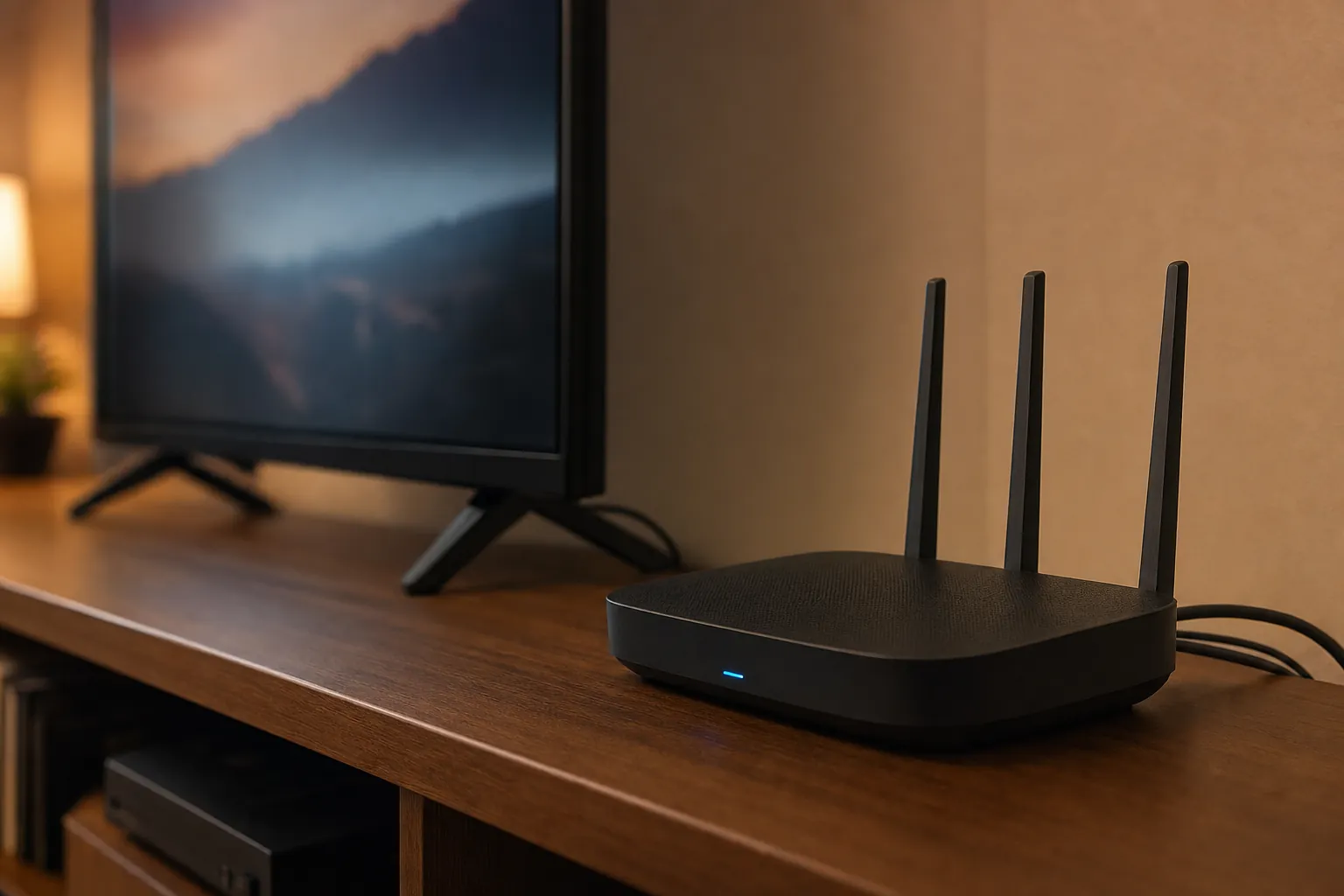
Then look at placement. A router tucked in a cabinet, placed behind a television, or set at one far end of the house has a harder time reaching every room. Put it in a more open, central location when possible. If the television is far from the router, a mesh Wi-Fi system, a range extender, or a wired connection may be more useful than paying for a much faster plan that cannot reach the screen.
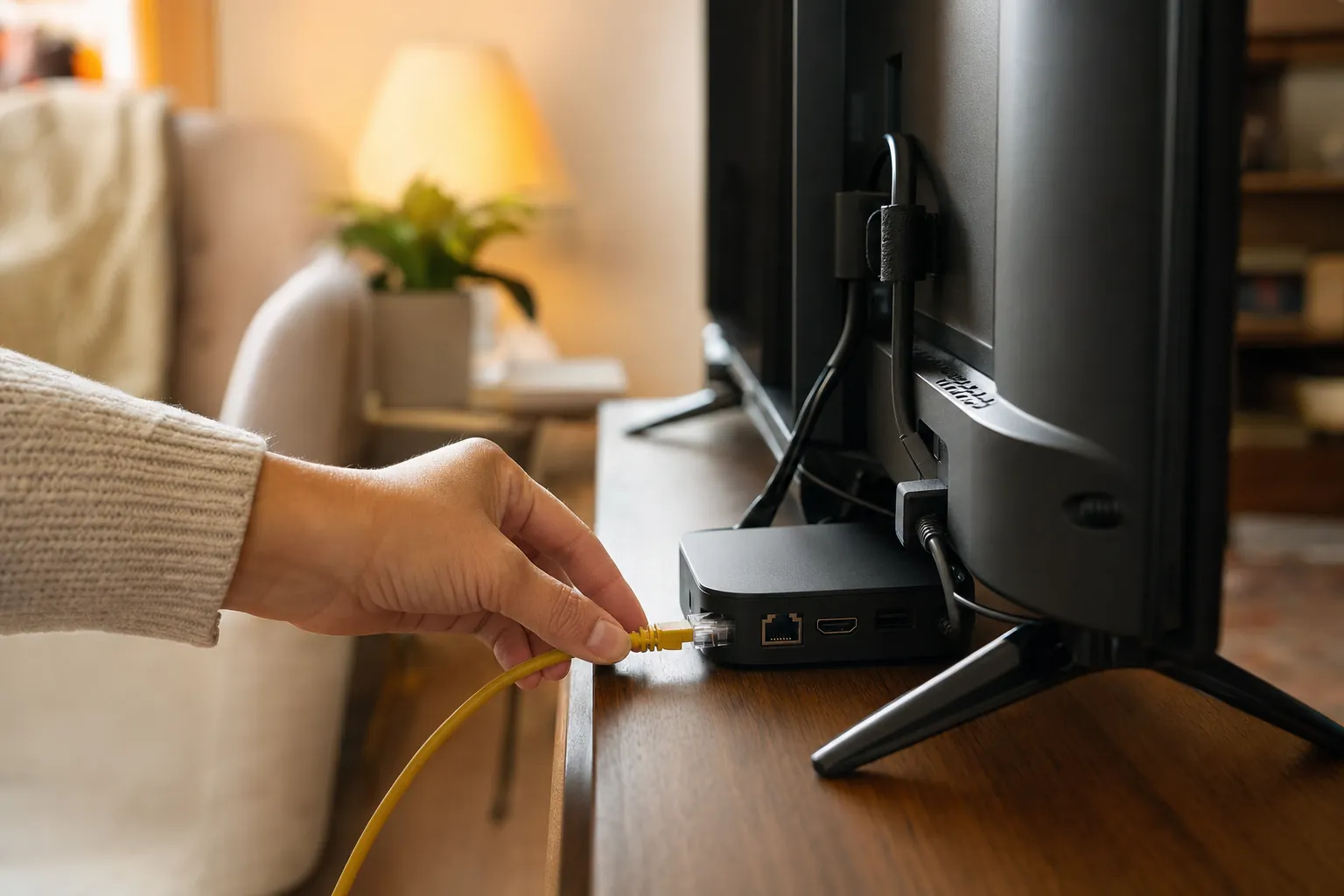
For a fixed television setup, Ethernet is worth considering. A wired connection does not make your service faster, but it can make the connection to the streaming device more stable by avoiding Wi-Fi interference. That can be especially helpful for a primary TV, live sports, or a room where the Wi-Fi signal drops at busy times.
When it is time to upgrade your internet plan
An upgrade is worth considering when the connection regularly falls short across the home, even after you have tested near the router and reduced avoidable Wi-Fi problems. It may also make sense when your household has changed. A plan that was fine for one HD television can feel tight after adding a 4K TV, a second room, remote work, online school, or more people using phones and tablets at the same time.
Look at the connection during your busiest hour. If a live game pauses whenever someone starts a video call, or a 4K movie consistently falls back to a soft picture when another screen starts streaming, you need more usable capacity or a stronger home network. Start by asking the provider what download speeds are consistently available at your address, then compare that answer with the number of screens and the picture quality you expect to use.
Remember that upload speed can matter too. It usually does not drive TV streaming, but it matters for video calls, cloud backups, and sharing files. A household with someone working from home may need a plan that keeps both directions of the connection comfortable, not just one that looks fast for a single movie.
Choose the setup that makes watching easier
Once the connection is steady, the next decision is how you want to watch. A ready-to-use streamer can simplify a primary TV setup. A flexible plan can make sense when you want to use compatible devices already in the house. The right answer depends on the screens you have, how many people watch at once, and whether live TV, DVR, movies, or series matter most.
My Cinema House Video Club is built for households that want those choices to feel less scattered. Before you choose a new plan or device, make a short list: the TV rooms you use, the picture quality you care about, the services or channels you do not want to lose, and how many screens may be active at once. That turns a vague speed question into a useful conversation about the whole setup.
For help comparing the options for your home, talk to My Cinema House support. A clear answer about your devices, rooms, and viewing habits is more helpful than guessing from a speed number alone.